Why a Satellite Tracker Position Changes After Refresh
Time, new orbital records, object identity and map display choices can all move a tracker marker.
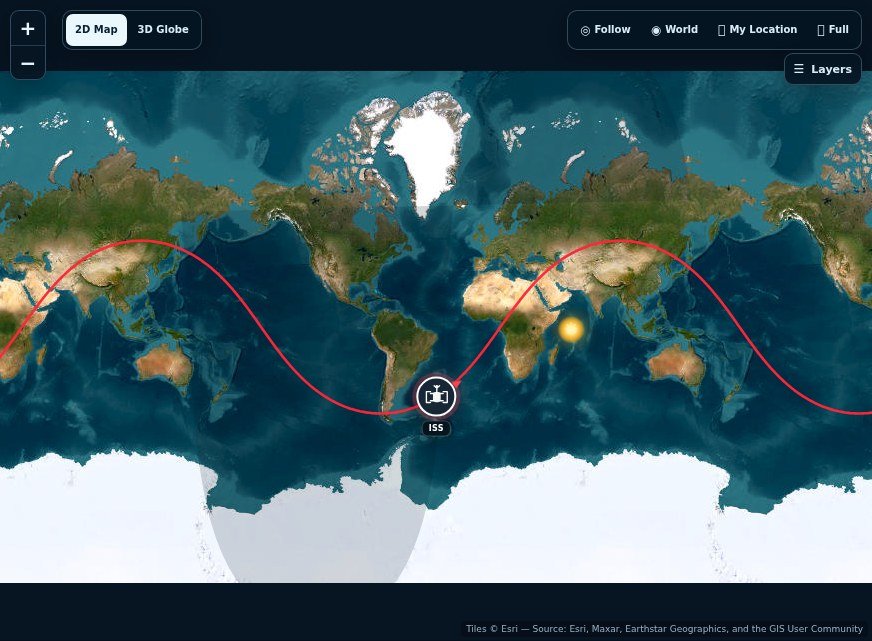
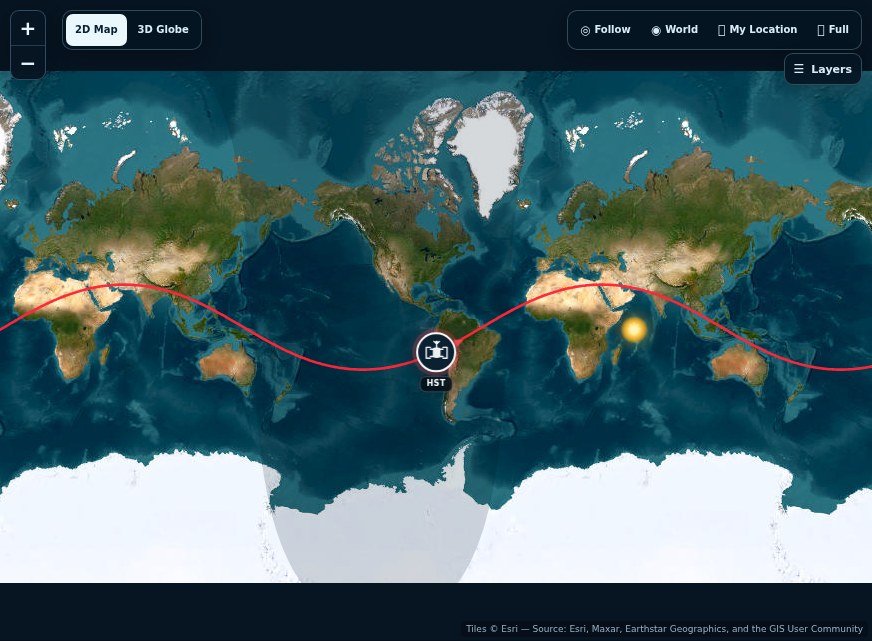
Before treating a changed marker as an error, compare the timestamps and orbital-data epochs. A low-Earth satellite can move a large distance during a short delay, and a newly updated orbital record can shift the propagated result again. Those two effects should be separated when diagnosing a tracker refresh.
The spacecraft never waited for the page
A low-orbit object travels several kilometres each second. Even a normal reload delay produces a visibly different map position. Compare timestamps before comparing markers. Two screenshots taken minutes apart are not evidence of disagreement; they may be accurate pictures of different moments.
Names can hide identity problems
Constellations contain many similarly named satellites, and catalogues can update designations after launch. Always confirm the NORAD catalog number when comparing two sources. Selecting a neighbouring Starlink object by mistake can produce a completely different position while the interface still appears superficially correct.
Maps introduce visual choices
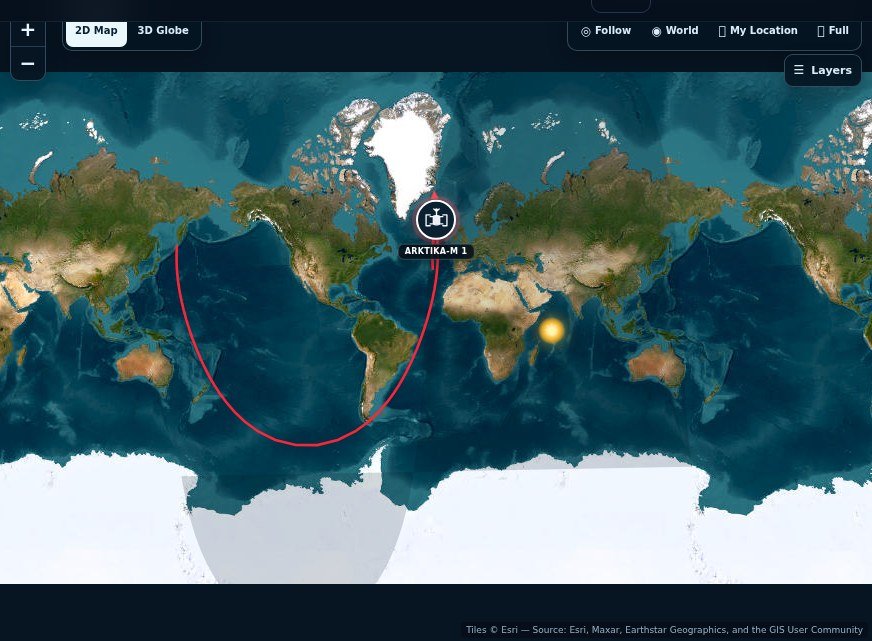
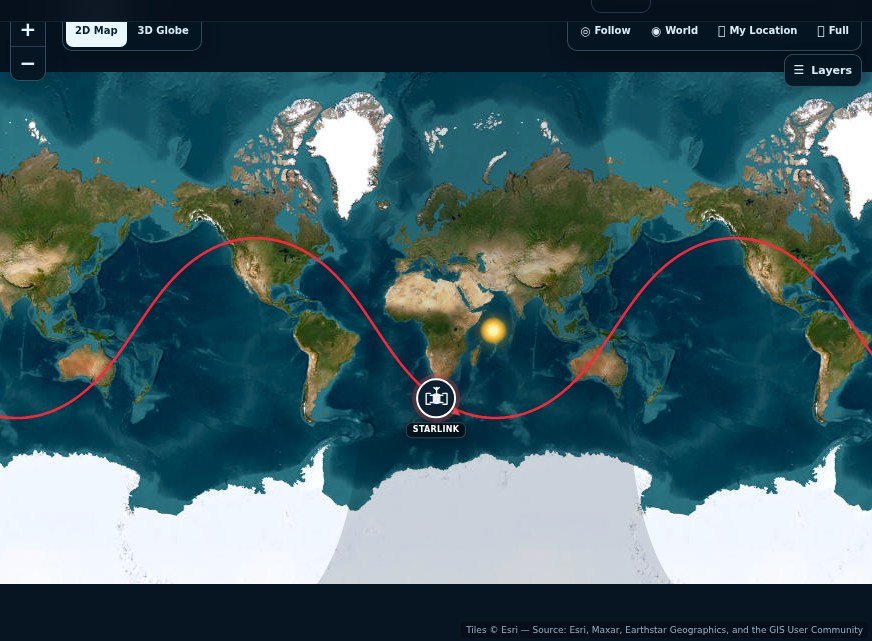
A ground track crosses the international date line and may wrap from one edge of a flat map to the other. Different projections, smoothing and update intervals can make identical coordinates look different. Read the numerical latitude, longitude and time before judging a visual discrepancy.
Which numbers should agree?
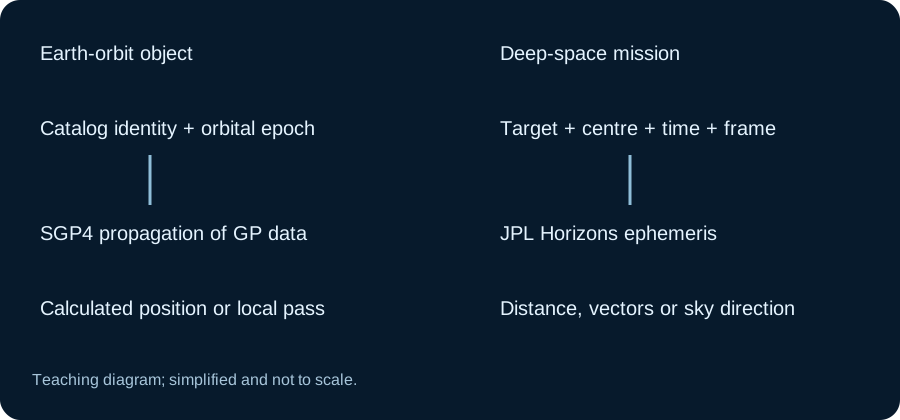
Two sites that report the same spacecraft at the same UTC instant should be compared using numerical coordinates, not only the position of a map pin. Check whether both display geodetic latitude and longitude, use a matching catalog ID and describe the same orbital-data epoch. The resulting comparison is specific enough to investigate a large persistent mismatch without confusing it with normal motion during a page refresh.
Freeze the comparison before drawing a conclusion
If two map views appear different, save their numerical position and timestamp at the same instant as closely as possible. Also record the NORAD identifier. A common trap is to compare the first page from memory while a second page has continued updating. Low-orbit spacecraft move quickly, so a short delay can be enough to shift the marker noticeably even when both calculations agree.
Avoid using only a cropped map image. Include latitude, longitude, altitude and the selected spacecraft name if those values are available. If the issue concerns a local pass, save the observer coordinates and time zone as well. That record distinguishes a calculation change from a display change. It also makes a later report actionable: someone can compare the same satellite at the same time rather than trying to infer the problem from a moving icon.
Crossing the map seam can look like a jump
A flat world map has to choose an edge. When a satellite crosses that longitude, a continuous journey around Earth can appear to jump from one side of the picture to the other. The ground-track line should be split appropriately at the seam; otherwise, it can draw an artificial segment across the map. That segment represents a rendering choice, not a spacecraft suddenly flying through the wrong continent.
Zoom and projection add another effect. A small coordinate change can look large at close zoom and barely noticeable on a full-world view. High-latitude tracks can also look stretched on some map projections. Compare the underlying coordinates before interpreting the visual shape. A globe and a flat map can represent the same orbit with very different curves, so the appearance of the line alone does not establish that the selected orbit changed.
A fresh element set can revise the whole path
The software predicts from its current reference orbit. When the provider supplies newer elements, the forecast is recalculated from that newer description. This can alter the current marker and future pass times together. It is particularly worth checking after a maneuver, a deployment phase or a period when atmospheric drag matters. The update is not simply the browser 'remembering' a different place.
Look for the orbital epoch if the page exposes it. Record the old and new epochs alongside the prediction times. If you cannot see the source age, describe that limitation instead of assuming that every refresh downloaded a new orbit. Reloading may only recalculate the position with a cached record. Understanding that difference is useful when you are trying to explain why one refresh shows smooth motion and another produces a larger adjustment.
Decide what needs reporting
Normal motion, date-line wrapping and modest changes after fresh data are expected kinds of behavior. A persistent frozen marker, a mismatch between the catalog number and title, or impossible-looking numerical values deserve investigation. First rule out a paused tab, incomplete loading and a different selected satellite. Those are interface conditions rather than evidence about the spacecraft's real orbit.
When reporting an issue, include the page address, object identifier, UTC or clearly labelled local time, numerical values and screenshot. Say whether the position changed continuously or only after refresh. If another source disagrees, note its data epoch and calculation settings. This short set of facts is enough to make the comparison reproducible. It also keeps a map-rendering bug from being confused with a provider update or an actual change in the satellite's trajectory.
A controlled comparison: change one thing at a time
If you suspect a faulty position, first compare two readings with the same catalog identifier and a shared UTC timestamp. Then repeat with the same observer location, map projection and orbital-record epoch if those details are exposed. A live map that continues updating cannot be compared reliably with a paused screenshot taken even a minute earlier. Time is an input to the orbit calculation; refreshing the page usually changes that input whether or not the orbit record changed.
Next separate the geographic marker from the observer's sky coordinates. Latitude and longitude locate the point beneath the spacecraft. Azimuth and elevation describe where the satellite appears from a particular observer. Change the observing city and the latter values can change substantially without altering the underlying satellite orbit. This is a useful diagnostic: a changed local viewing angle does not necessarily mean the map is using new orbital elements.
Three different problems that can look like a jump
Normal motion: the selected satellite has advanced while your page was reloading. Map seam: longitude wrapped across the map's edge, although the physical path was continuous. New propagation result: fresher orbital elements or a changed object selection produced different coordinates for the same requested time. These causes require different responses; a screen recording alone cannot always distinguish them.
When submitting a reproducible issue, include a NORAD catalog number, UTC timestamp, latitude and longitude, the relevant orbital-data epoch if shown, and what was expected. If the concern is a local pass, include approximate observer coordinates and the time zone. Do not share your exact home address just to describe an astronomy-tracker problem. A short set of numerical facts is far more helpful than repeatedly refreshing the map until the marker appears where you expected.